
How to create an intermission screen in Streamlabs
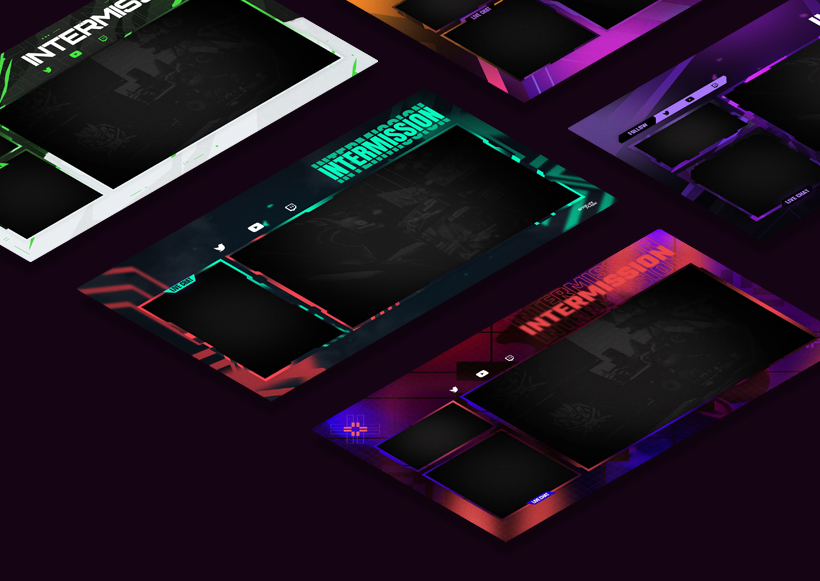
An intermission screen keeps viewers around during a break instead of losing them. Here's how to build one with a background, message and countdown timer.
1. Create a dedicated scene
In the Editor tab, click Create new under Scenes and name it "Intermission Screen" — keeping it separate means you can switch to it instantly with a hotkey.
2. Add your background image
Click + in Sources, choose Image, and select your intermission background. Fit it to your canvas size in the Properties box.
3. Add your message
Click + and choose Text (GDI+). Name it "Intermission Text" and type something like "Be right back" or "Starting soon". Adjust font, size, color and position to match your brand.
4. Add a countdown timer
Click + and choose Timer. Name it "Intermission Timer" and set how long the break should last. This gives viewers a reason to keep the tab open instead of clicking away.
5. Arrange and go live
Drag the background, text and timer into position. Click Preview Stream to check it, then switch to this scene any time you need a break — your viewers see a clean, branded message instead of a frozen screen.
Pro tip
Loop some background music under your intermission scene (Streamlabs lets you add an Audio Source to a single scene) — silence during a break is when viewers are most likely to leave.