
How to make a weekly stream schedule for Twitch and YouTube
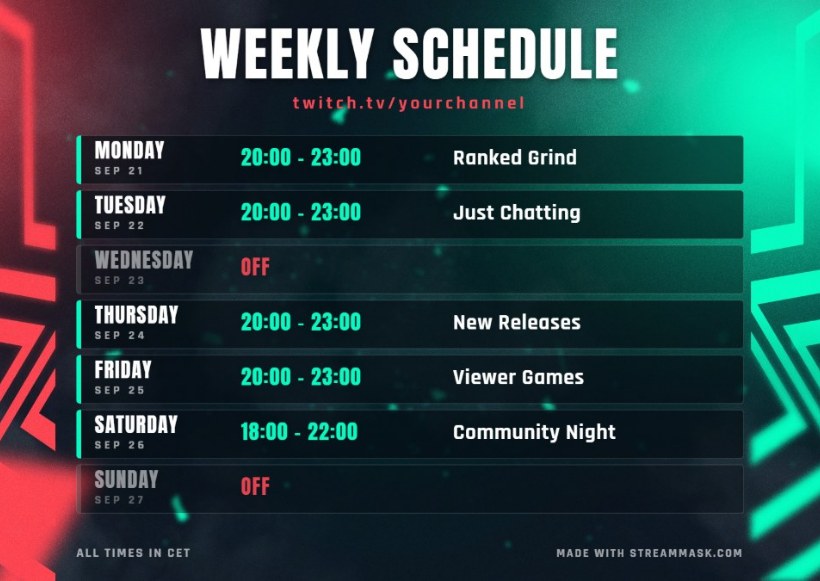
When viewers know when you go live, they show up. A weekly schedule image is the easiest way to tell them: one picture you can pin, post and reuse. Here is how to make a good one in a few minutes with the free Schedule Maker.
1. Choose a design and your colors
Pick one of the six designs and set your accent colors. The whole artwork is recolored, so it matches your channel.
2. Add a title and your handle
Keep the title short ("WEEKLY SCHEDULE" is fine) and put your channel name or link underneath, so the image works even when it is shared without context.
3. Fill in your week
Tick the days you stream, add a start time, an end time if you want one, and what you will be playing or doing. Untick a day and it shows as OFF. If you stream at the same time most days, press Same time every day and adjust the exceptions.
4. Add your timezone
Type your timezone (for example CET or PST) in the timezone field. It is printed at the bottom of the image, which avoids the most common question from international viewers. You can also switch between 24-hour and 12-hour times, and make the graphic in English, Spanish or French.
5. Download it and post it
Download the 1920x1080 PNG. It works in several places:
- Twitch offline screen: upload it as your offline banner so visitors see your schedule when you are not live.
- Discord: post it in your announcements channel and pin it.
- X (Twitter) and Instagram: post it every Monday and pin the post.
- YouTube: share it in a community post.
Make it move on stream
The same schedule can appear on your stream as an animated scene: on the Schedule Maker page press Get it as an animated OBS widget. It highlights today's row and always shows the current week. Read how to add a browser source to OBS.
Tips for a schedule people actually follow
- Be realistic. Three days you always keep beat six days you sometimes skip.
- Keep start times consistent. Viewers build a habit around a fixed time.
- Update it when it changes. The page remembers your settings, so a change takes a minute.
- Post it on the same day each week. A weekly reminder is part of the routine.